Prerequisites
- Your plan includes QR codes and you have QR capacity remaining.
Attach at create or edit
1
Open create or edit
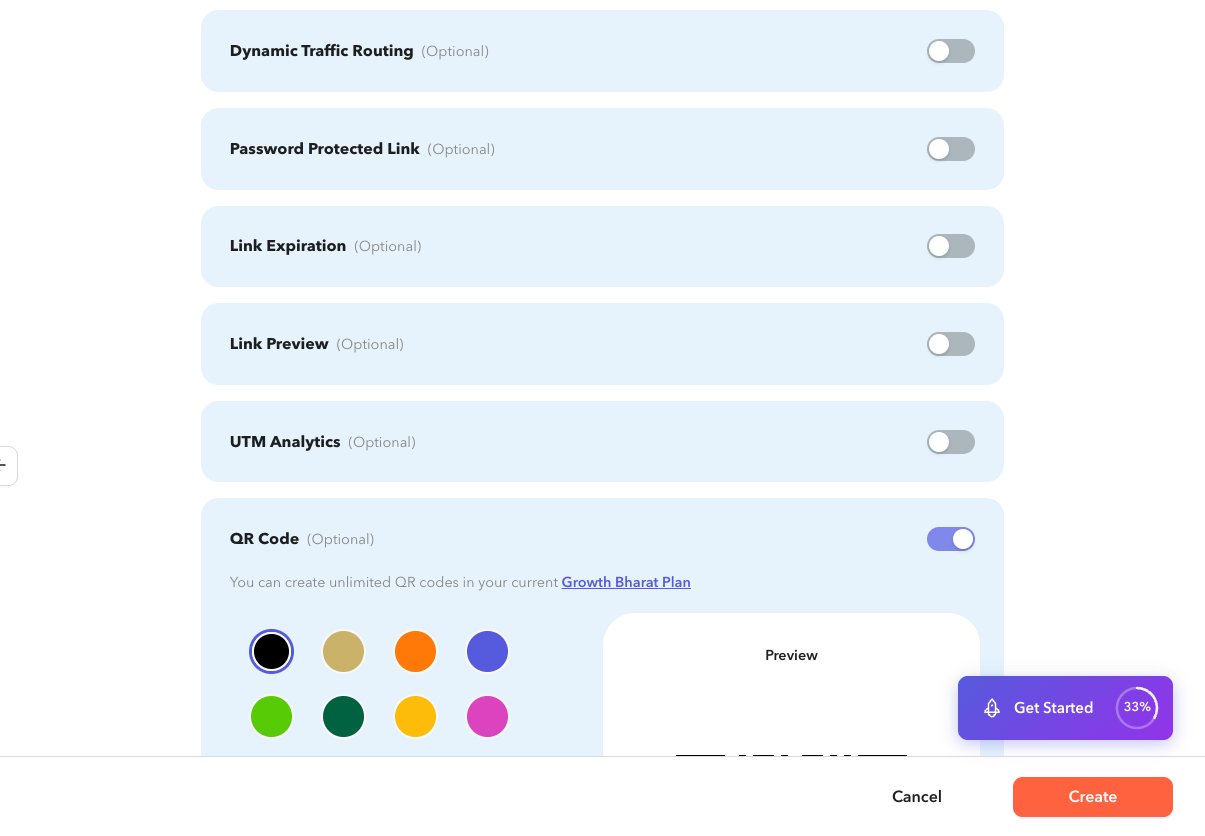
Expand QR Code on the shortlink form.
2
Enable and choose a color
Turn QR on and pick a preset color if offered.
3
Save
Create or update the shortlink. To refine logo and styling later, open Edit QR Code from the edit form when a QR already exists.
From the Shortlinks list
1
Create QR
On a row, choose Create QR Code to open
/app/qrcode/create?s={shortlink}.2
Download
When a QR exists, use Download QR for PNG, JPEG, or SVG.
3
Open details
From the shortlink details card, open QR Code Details (
/app/qrcode/details?s=…).